Signing PDF Annexures
With PDF attachments, users can attach PDF files to their forms, having them sent out and signed alongside their primary forms, using DocuSign.
📝 Steps for attaching a file:
From within your form, click
Moreand selectFilesfrom the drop down menu.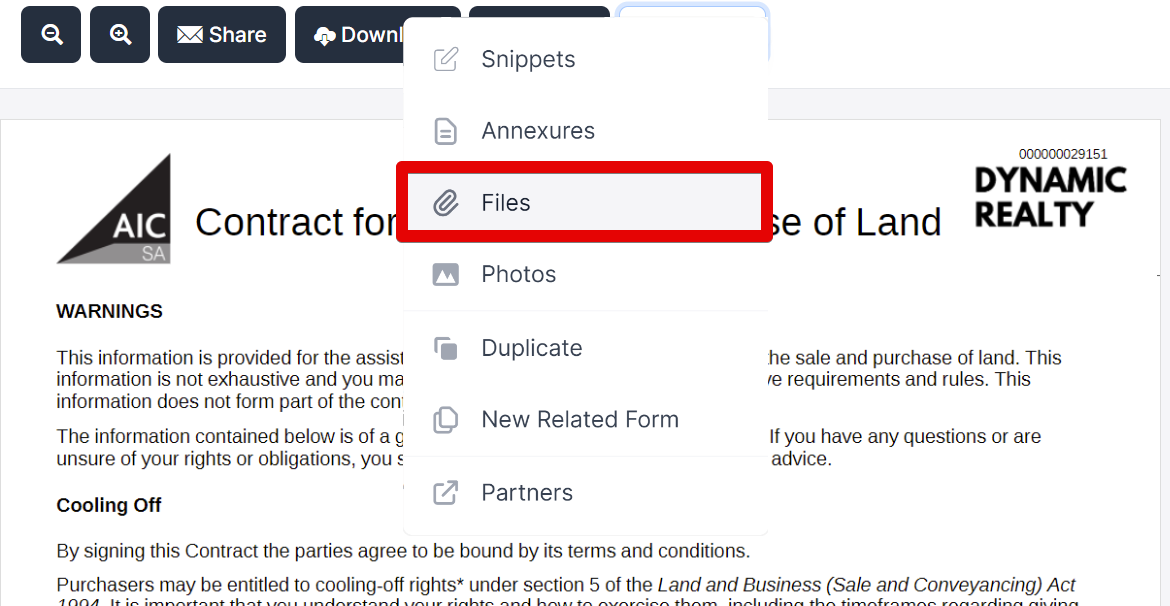
Select the desired PDF and click
Openand thenUploadto attach the file.
📝 Steps for signing PDF annexures:
Click
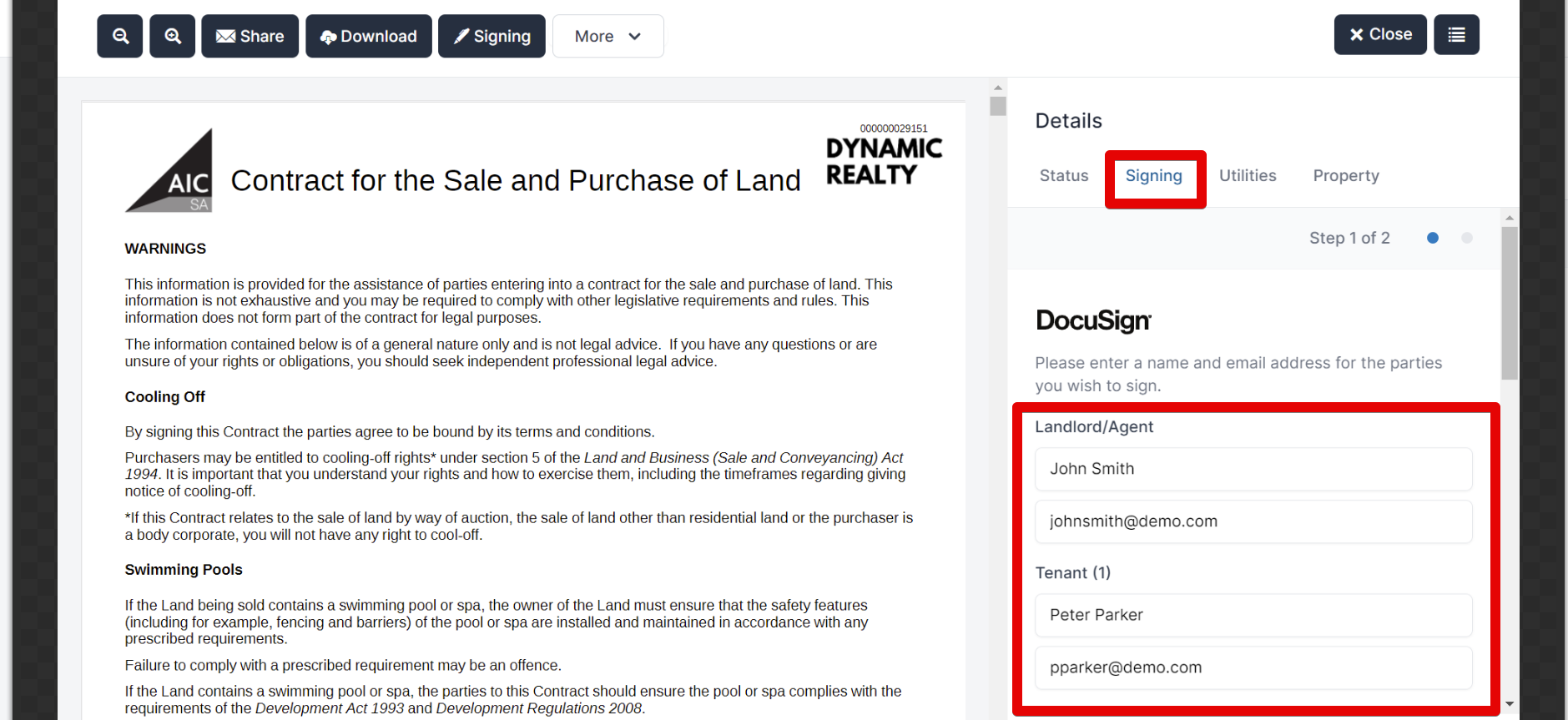
Finalisein the top toolbar to finalise the form.In the right side of the screen under
Details, clickSigningto begin the signing process.Enter the details of the signers, as appears in the sidebar.
Ensure any desired attachments have been ticked and click
signingnext to the PDF you wish to get signed.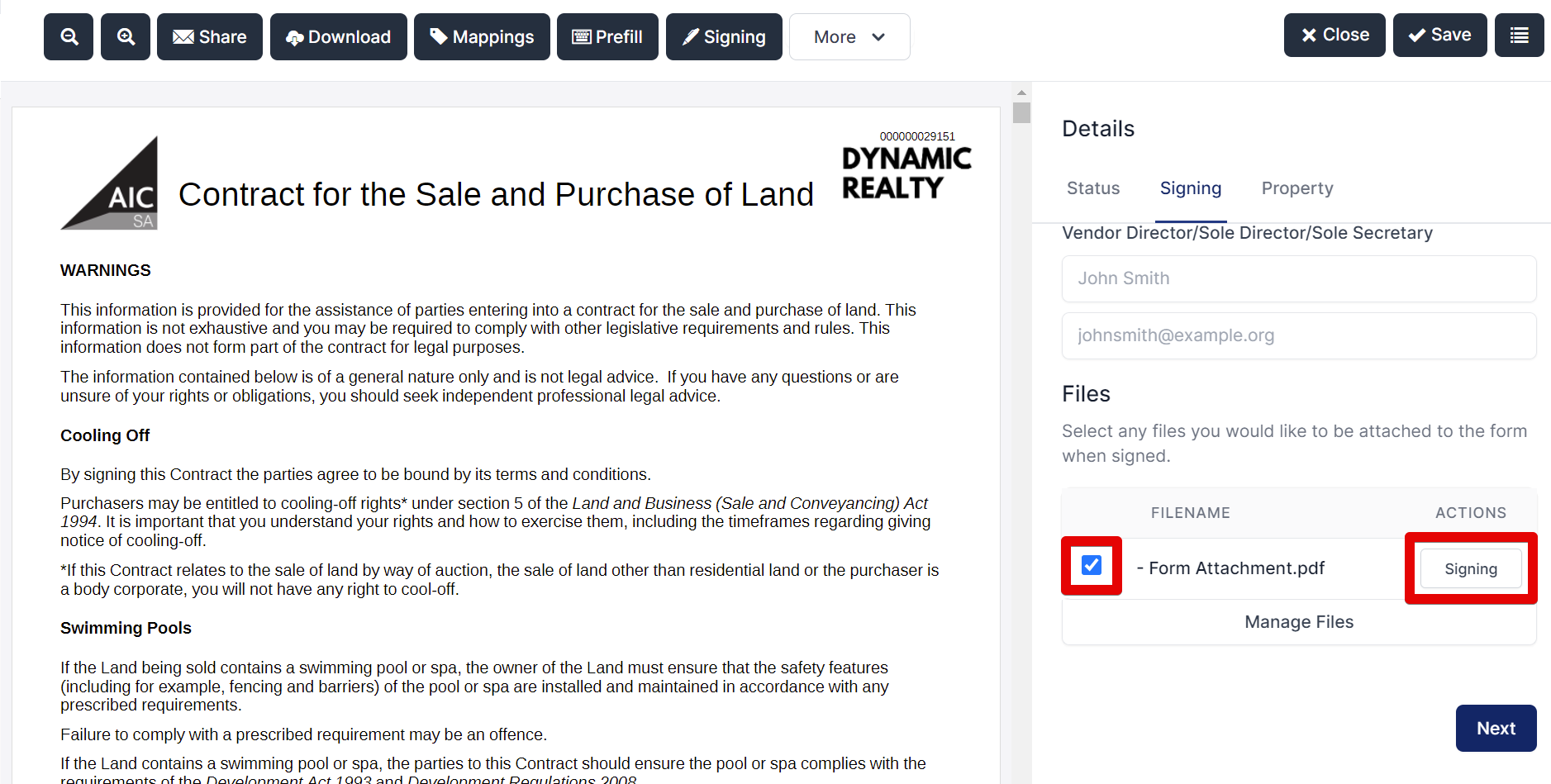
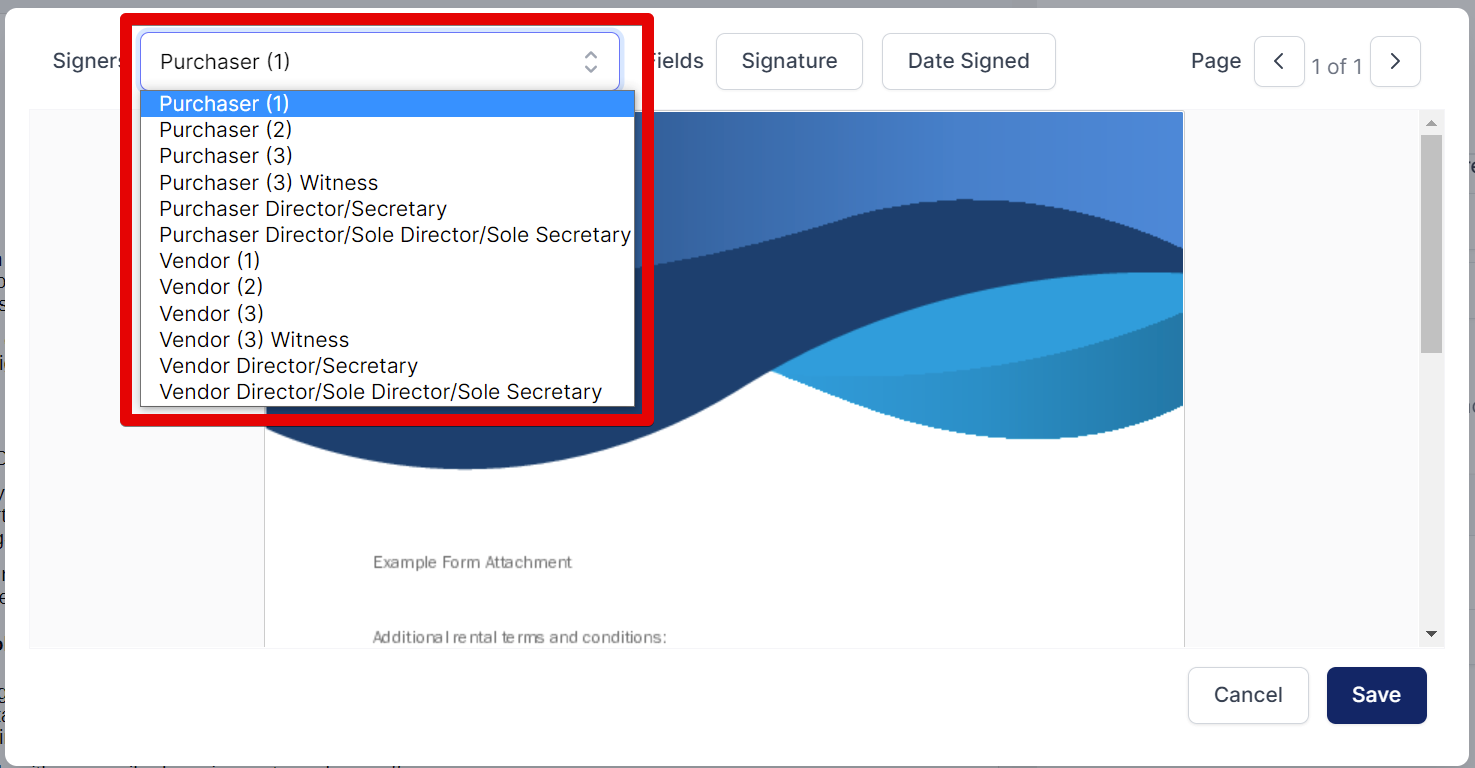
Select the party you wish to add a signing field for by clicking on the drop down menu and selecting from the list.
Select the field you wish to add to your attachment and click the space you would like it to be included. You can drag these fields to reposition them, or remove them by clicking the
x.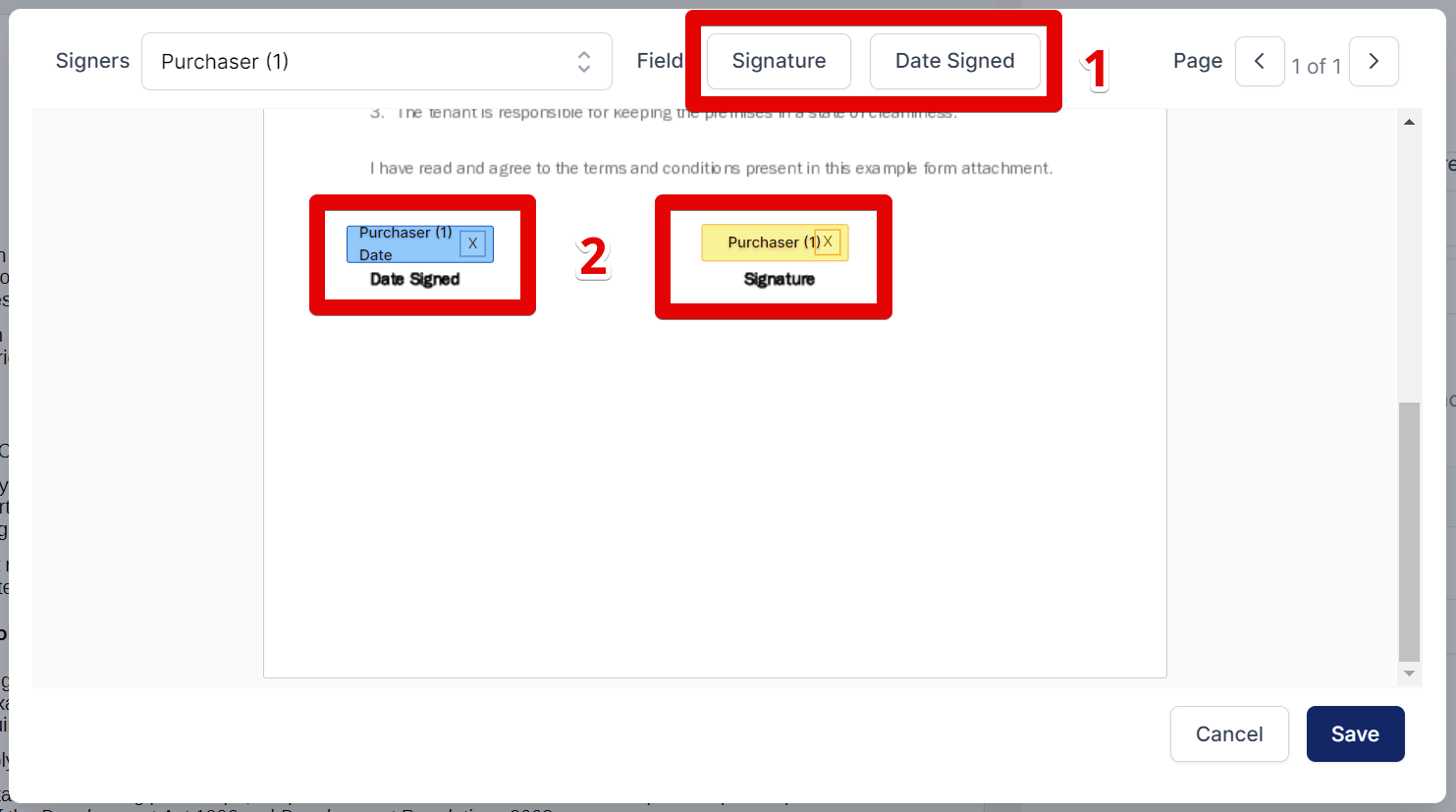
Click
Saveand proceed to send the form for remote signing.
Signees will be sent invitations for signing via email.
📝 Steps for viewing and downloading the completed forms and attachments:
Once the form and attachment have been signed, return to the ‘Forms’ page and select the relevant form.
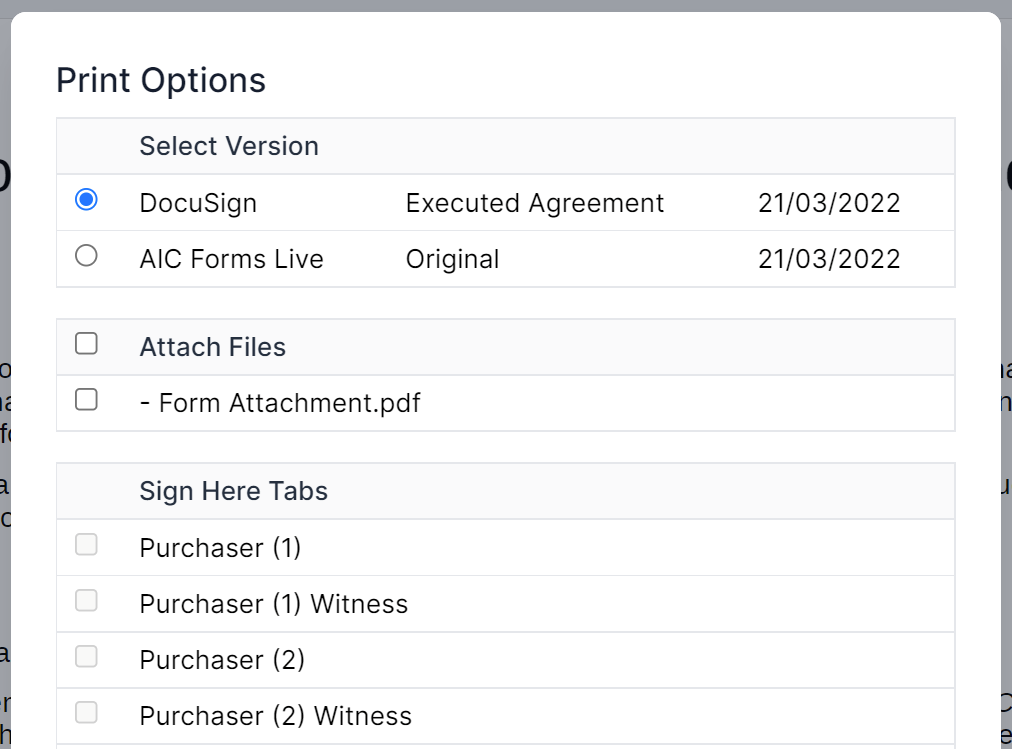
Click the download/print icon on the top of the page.
Tick the version labelled
DocuSign Executed Agreement.